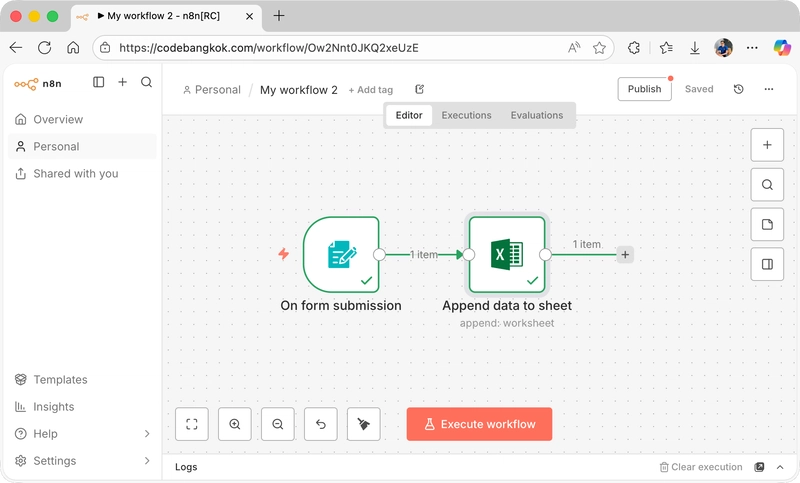
n8n: Microsoft Excel – Append data to sheet

Prerequisite
- Create – Microsoft OAuth
- Credential – Microsoft Excel account
Create Workbook
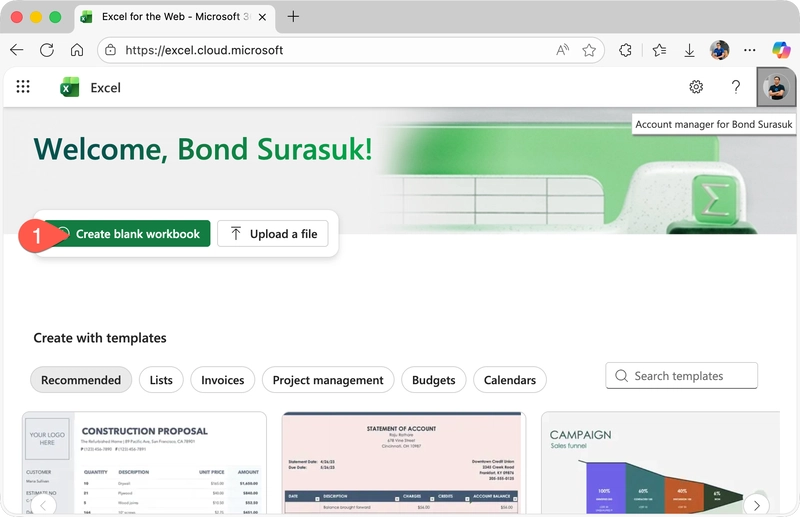
1) Go to https://excel.cloud.microsoft
2) Click – Create blank workbook
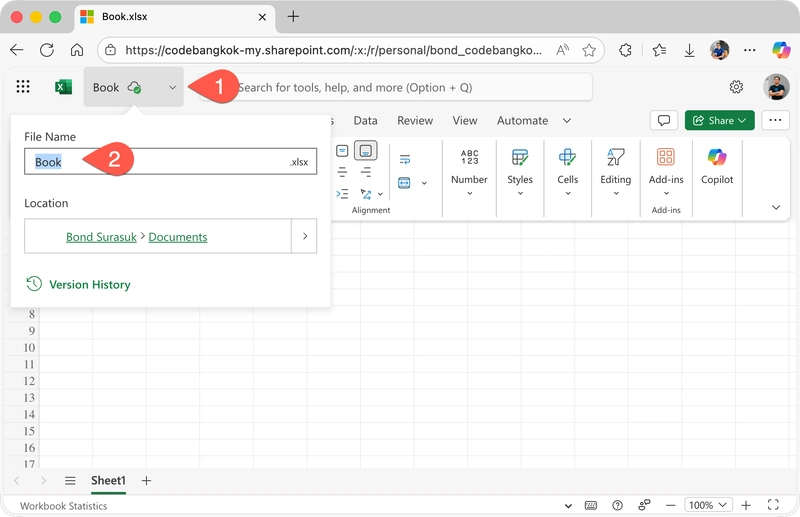
3) Click – (1)
4) Change – File Name (2)
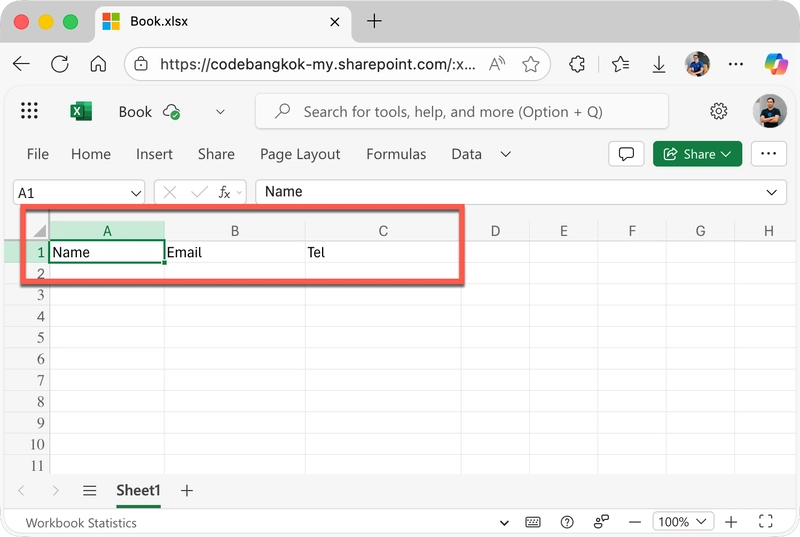
5) Define column in Excel
- Name
- Tel
n8n Workflow
1) Go to n8n website
2) Create workflow
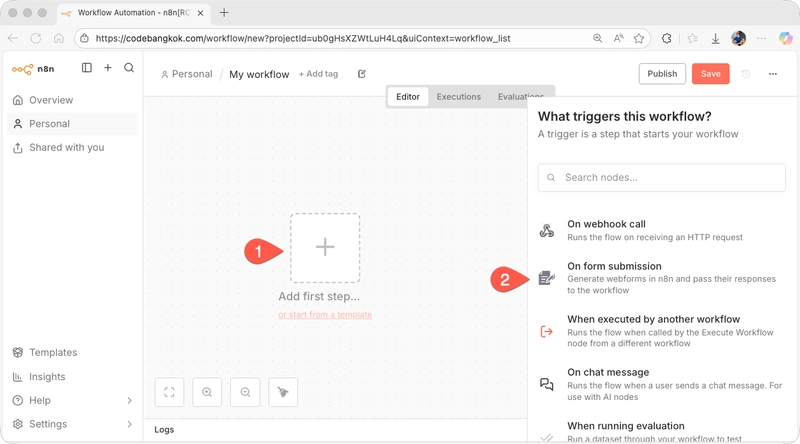
3) Add first step – On form submission
4) Form Title: New User
5) Add Form Element
Field Name: Name
Element Type: Text
Required Field: Enable
6) Add Form Element
Field Name: Email
Element Type: Email
Required Field: Enable
7) Add Form Element
Field Name: Tel
Element Type: Text
Required Field: Enable
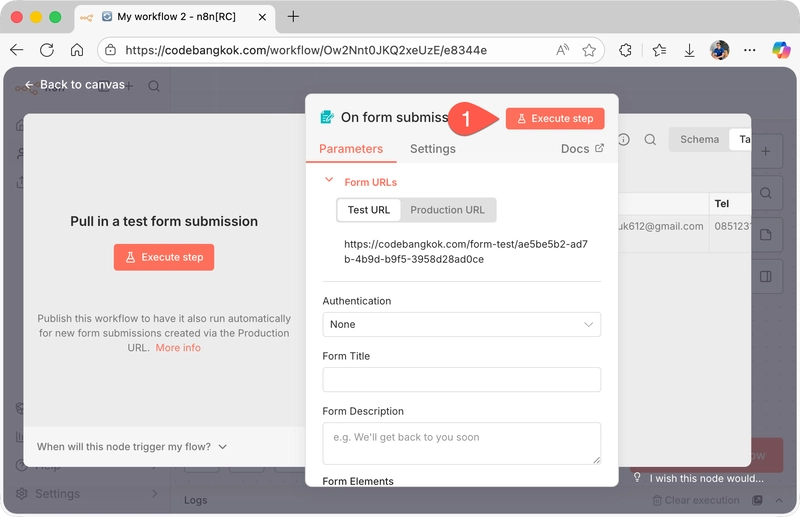
8) Click – Execute step (1)
9) Fill form
10) Click – Submit
11) Close
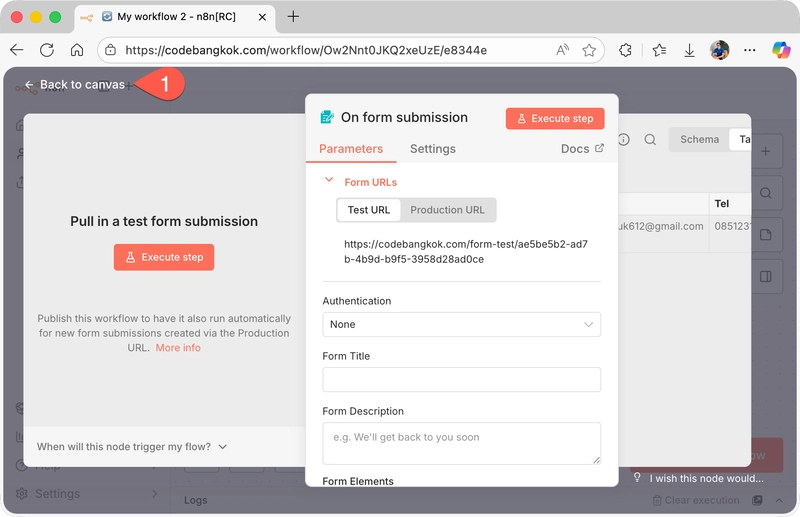
12) Click – Back to canvas (or press “esc” on keyboard)
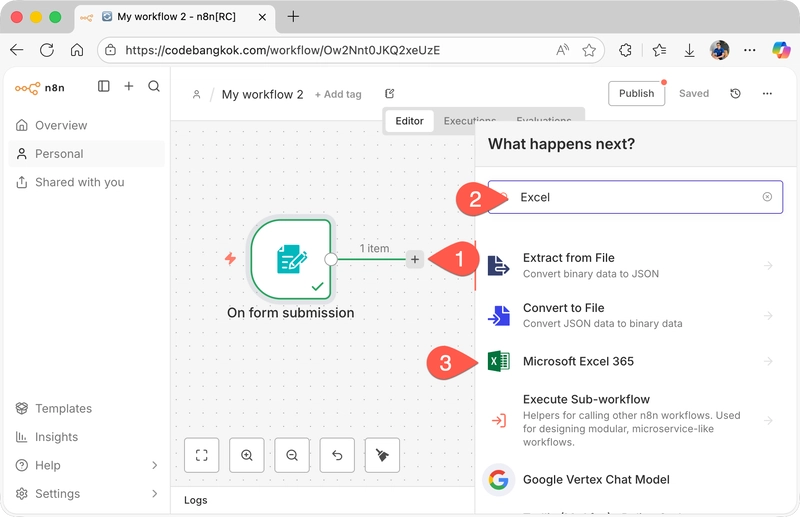
13) Click – + (1)
14) Search – Excel (2)
15) Click – Microsoft Excel 365 (3)
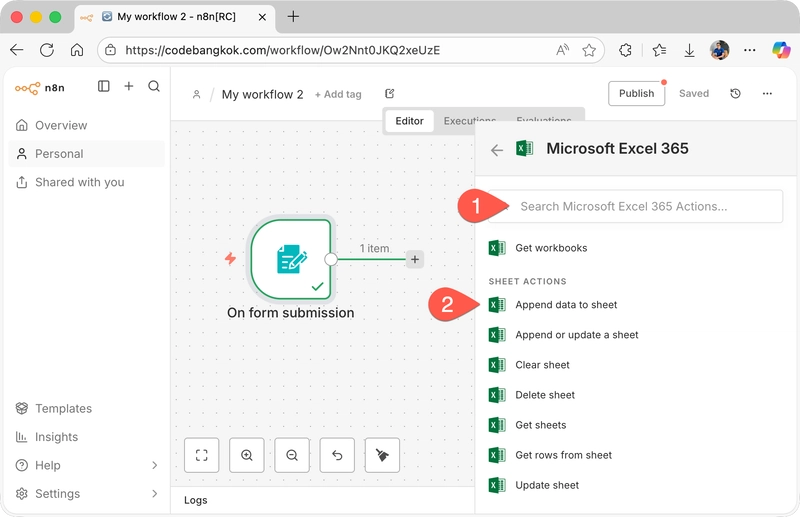
16) Search – (1)
17) Click – Append data to sheet (2)
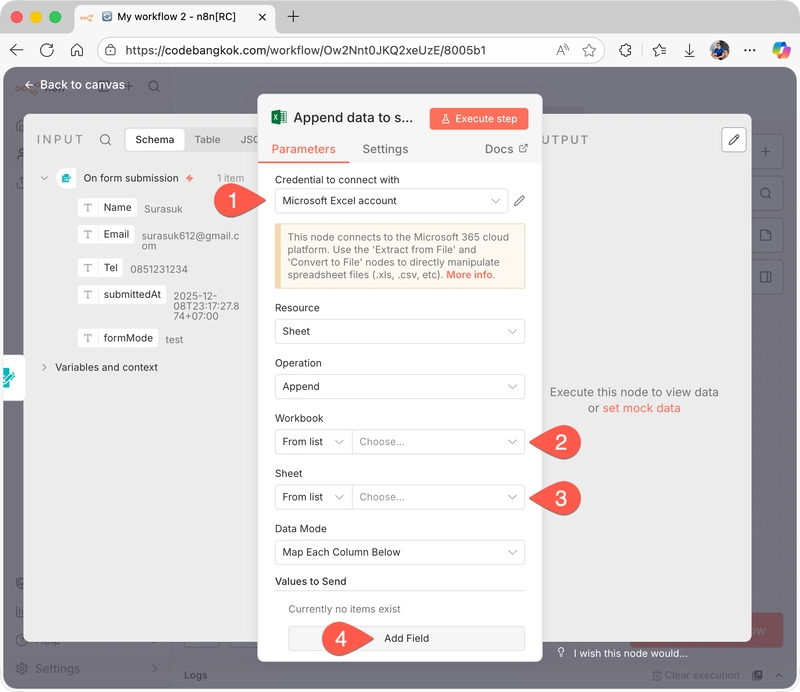
18) Choose – Microsoft Excel account (1)
19) Choose – Workbook (2)
20) Choose – Sheet (3)
21) Click – Add Field (4)
22) Click – Add Field (4)
23) Click – Add Field (4)
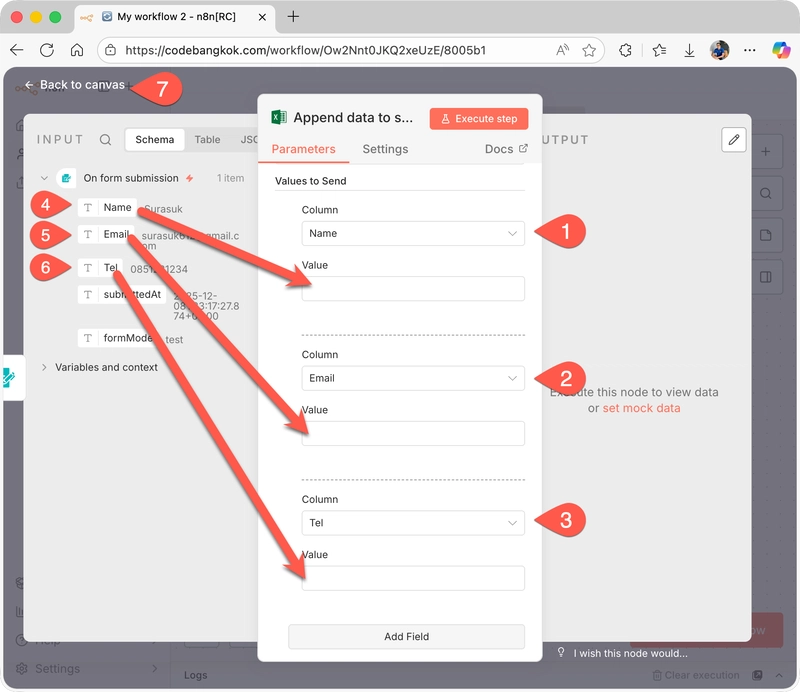
24) Choose – Column – Name (1)
25) Choose – Column – Email (2)
26) Choose – Column – Tel (3)
27) Drag – Name > Value (4)
28) Drag – Email > Value (5)
29) Drag – To > Value (6)
30) Click – Back to canvas (7)
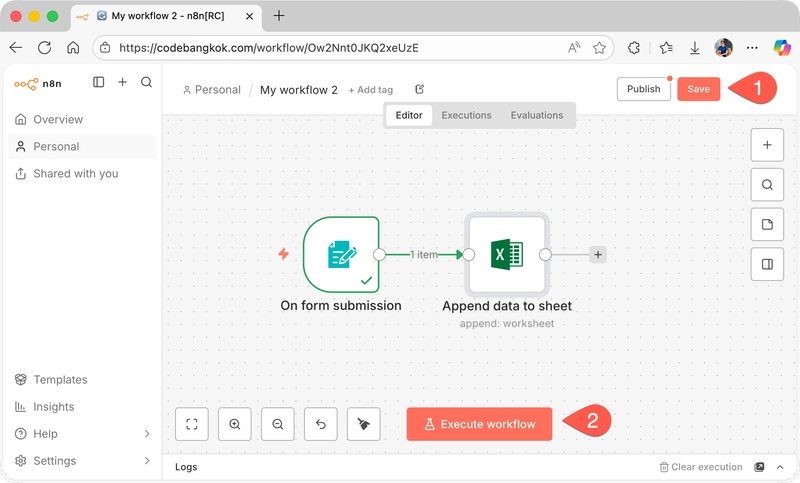
31) Click – Save (1)
32) Click – Execute workflow (2)
33) Fill form
34) Click – Submit (1)
35) Check – Microsoft Excel Workbook
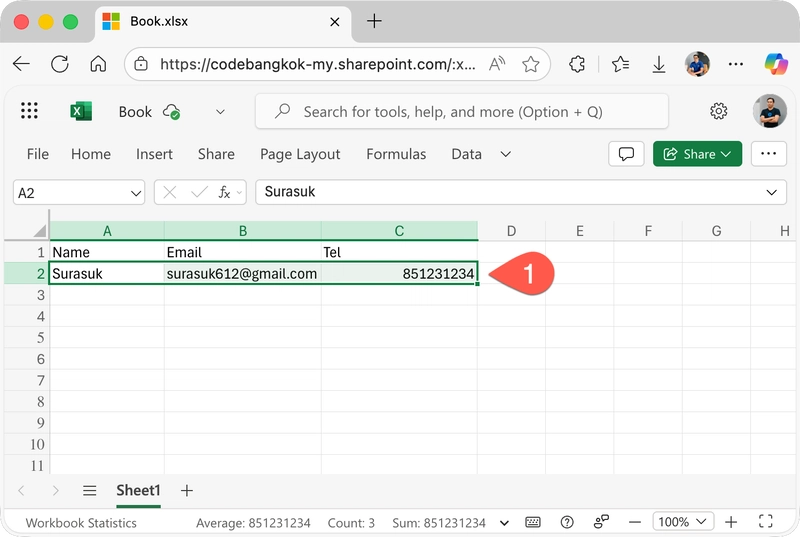
36) Completed