
🔐 AWS 137: Secure Resource Access – IAM Roles for EC2 and S3


🛡️ Least Privilege in Action: Connecting EC2 to S3 without Access Keys
Hey Cloud Security Architects 👋
Welcome to Day 37 of the #100DaysOfCloud Challenge!
Today, the Nautilus DevOps team is implementing a critical security pattern. We need our datacenter-ec2 instance to upload and download files from a private S3 bucket. However, we won’t be using hardcoded passwords or long-term access keys. Instead, we are using IAM Roles the most secure way to delegate permissions in AWS.

This task is part of my hands-on practice on the KodeKloud Engineer platform, which I highly recommend for anyone looking to master real-world DevOps scenarios.
🎯 Objective
- Establish passwordless SSH access from
aws-clienttodatacenter-ec2. - Create a private S3 bucket named
datacenter-s3-15606. - Authorize a custom IAM Policy with
PutObject,ListBucket, andGetObjectpermissions. - Create an IAM Role named
datacenter-roleand attach it to the EC2 instance. - Verify the connection by uploading and listing files from the server’s CLI.
💡 Why IAM Roles are Better than Access Keys
Storing AWS_ACCESS_KEY_ID and AWS_SECRET_ACCESS_KEY on a server is a liability. If the server is compromised, your keys are stolen.
🔹 Key Concepts
- IAM Instance Profile: This is a container for an IAM role that you can use to pass role information to an EC2 instance when the instance starts.
- Temporary Credentials: AWS Security Token Service (STS) automatically rotates the credentials for the role every few hours. You don’t have to manage them!
- S3 Bucket Policy vs. IAM Policy: While both can control access, an IAM policy attached to a role is often easier to manage when you want to grant “Power” to a specific server.
🛠️ Step-by-Step: The Secure Identity Workflow
🔹 Phase A: Set Up SSH Access
-
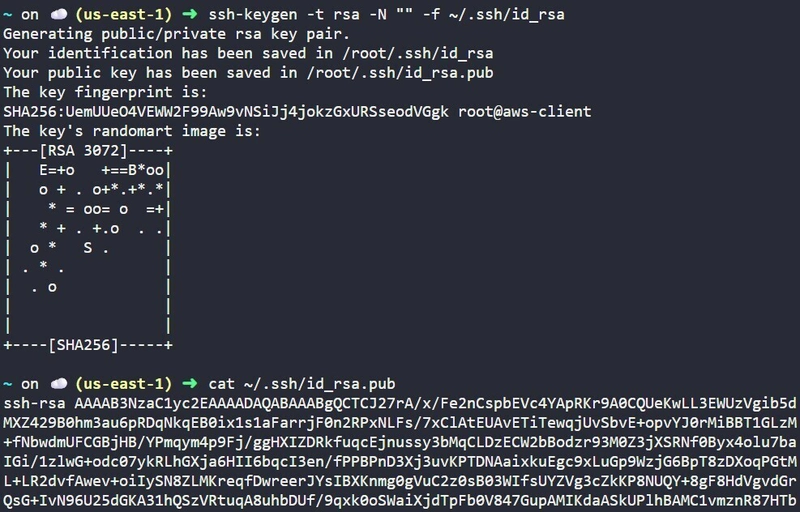
Generate Keys: On the
aws-client, runssh-keygen -t rsato create your identity files in/root/.ssh/. -
Authorize: Copy the content of
id_rsa.puband append it to the/root/.ssh/authorized_keysfile on the targetdatacenter-ec2.
🔹 Phase B: Provision S3 and IAM Rules
-
S3 Bucket: Create
datacenter-s3-15606. Ensure “Block all public access” is checked.

- IAM Policy: Create a policy with the following JSON (replacing bucket name):
  {
      "Version": "2012-10-17",
      "Statement": [
          {
              "Effect": "Allow",
              "Action": [
                  "s3:PutObject",
                  "s3:GetObject",
                  "s3:ListBucket"
              ],
              "Resource": [
                  "arn:aws:s3:::datacenter-s3-15606",
                  "arn:aws:s3:::datacenter-s3-15606/*"
              ]
          }
      ]
  }
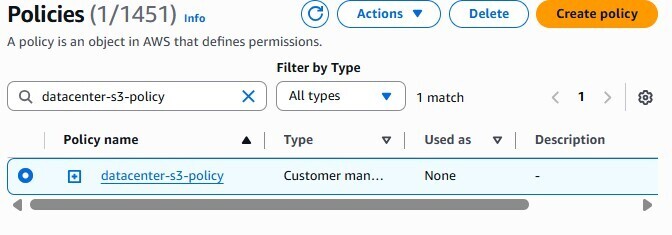
-
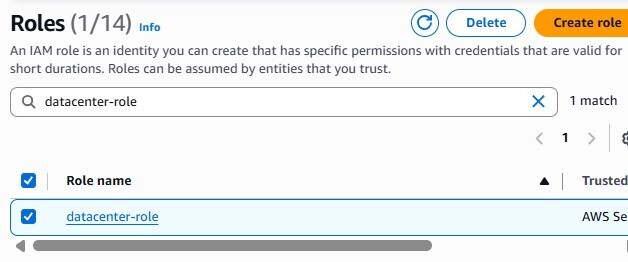
IAM Role: Create
datacenter-rolefor the EC2 service and attach the policy above.
🔹 Phase C: Attach Role and Test
-
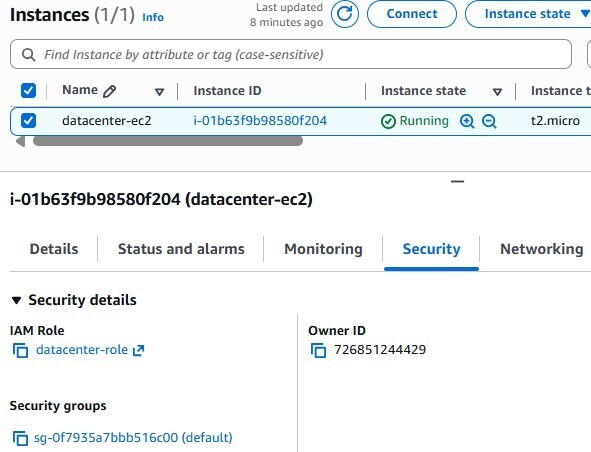
Attach Role: Select
datacenter-ec2in the console → Actions → Security → Modify IAM role. Selectdatacenter-role.
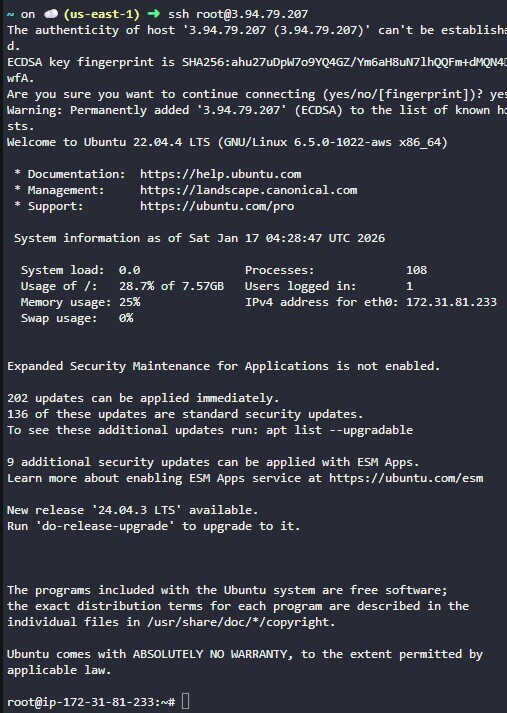
- Login: SSH into the instance from the client.
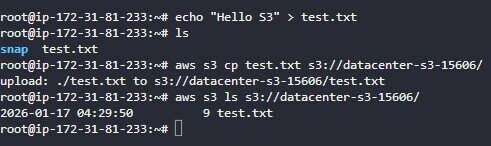
- AWS CLI Test:
echo "Testing Day 37" > testfile.txt
aws s3 cp testfile.txt s3://datacenter-s3-15606/
aws s3 ls s3://datacenter-s3-15606/
✅ Verify Success
-
Check the Output: If the
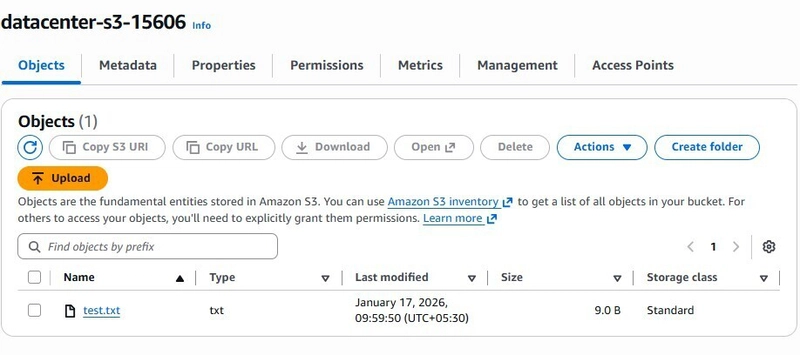
lscommand shows yourtestfile.txtwithout asking for credentials, mission accomplished! - Console Check: Navigate to the S3 bucket in the AWS Console to see your uploaded file.
📝 Key Takeaways
- 🚀 Zero Credential Management: You never typed
aws configureon the EC2 instance. The role handled everything. - 🛡️ Resource-Level Permissions: The policy only allowed access to one specific bucket, not all of them.
- 🕒 Propagation: It can take a few seconds for an IAM role attachment to be recognized by the AWS CLI on the instance.
🚫 Common Mistakes
-
Missing Resource ARN: Forgetting to include both the bucket ARN and the bucket ARN with
/*(which covers the objects inside). -
Incorrect Trust Relationship: Creating a role but forgetting to set the “Trusted Entity” to
ec2.amazonaws.com. - Public Access: Accidentally making the bucket public. Always use IAM roles for private access instead.
🌟 Final Thoughts
You’ve just implemented one of the most important security best practices in the AWS cloud! Using IAM roles for EC2 instances is a foundational skill for building secure, automated, and professional-grade infrastructure.
🌟 Practice Like a Pro
If you want to try these tasks yourself in a real AWS environment, check out:
👉 KodeKloud Engineer – Practice Labs
It’s where I’ve been sharpening my skills daily!
🔗 Let’s Connect
- 💬 LinkedIn: Hritik Raj
- ⭐ Support my journey on GitHub: 100 Days of Cloud