🩺 How I Troubleshoot an EC2 Instance in the Real World (Using Instance Diagnostics)

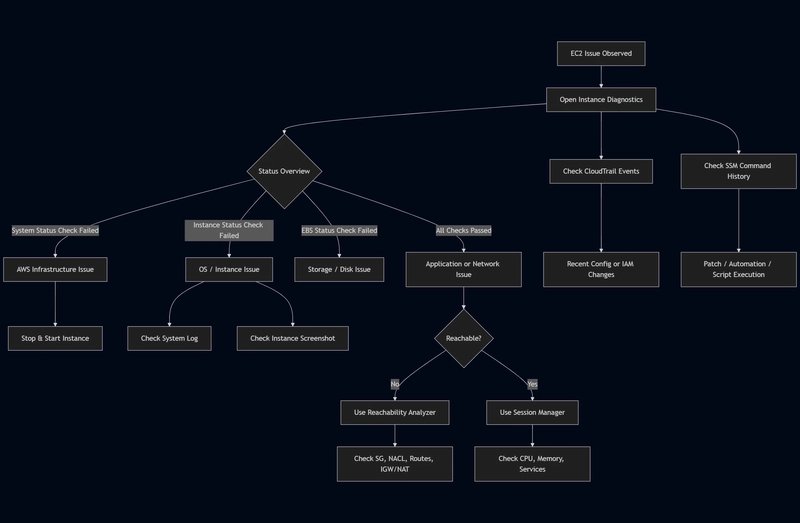
When an EC2 instance starts misbehaving, my first reaction is not to SSH into it or reboot it. Instead, I open the EC2 console and go straight to Instance Diagnostics.
Over time, I’ve realized that most EC2 issues can be understood — and often solved — just by carefully reading what AWS already shows on this page.
In this blog, I’ll explain how I use each section of Instance Diagnostics to troubleshoot EC2 issues in a practical, real-world way.
The First Question I Answer
Before touching anything, I ask myself one simple question:
Is this an AWS infrastructure issue, or is it something inside my instance?
Instance Diagnostics helps answer this in seconds.
Status Overview: Always the Starting Point
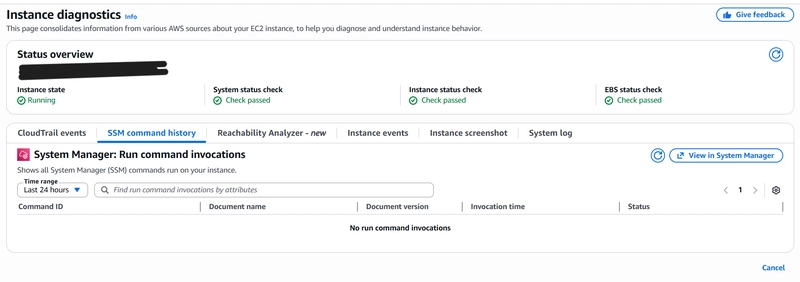
I always begin with the Status Overview at the top.
Instance State
This confirms whether the instance is running, stopped, or terminated.
If it is not running, there is usually nothing to troubleshoot.
System Status Check
This reflects the health of the underlying AWS infrastructure such as the physical host and networking.
If this check fails, the issue is on the AWS side. In most cases, stopping and starting the instance resolves it by moving the instance to a healthy host.
Instance Status Check
This check represents the health of the operating system and internal networking.
If this fails, the problem is inside the instance — typically related to OS boot issues, kernel problems, firewall rules, or resource exhaustion.
EBS Status Check
This confirms the health of the attached EBS volumes.
If this fails, disk or storage-level issues are likely, and data protection becomes the immediate priority.
CloudTrail Events: Tracking Configuration Changes
If an issue appears suddenly, the CloudTrail Events tab is where I go next.
I use it to confirm:
- Whether the instance was stopped, started, or rebooted
- If security groups or network settings were modified
- Whether IAM roles or instance profiles were changed
- If volumes were attached or detached
This helps quickly identify human or automation-driven changes.
SSM Command History: Understanding What Ran on the Instance
The SSM Command History tab shows all Systems Manager Run Commands executed on the instance.
This is especially useful for identifying:
- Patch jobs
- Maintenance scripts
- Automated remediations
- Configuration changes
If there are no recent commands, that information itself is useful because it confirms that no SSM-driven actions caused the issue.
Reachability Analyzer: When the Issue Is Network-Related
If the instance is running but not reachable, I open the Reachability Analyzer directly from Instance Diagnostics.
This is my go-to tool for diagnosing:
- Security group issues
- Network ACL misconfigurations
- Route table problems
- Internet gateway or NAT gateway connectivity
- VPC-to-VPC or on-prem connectivity issues
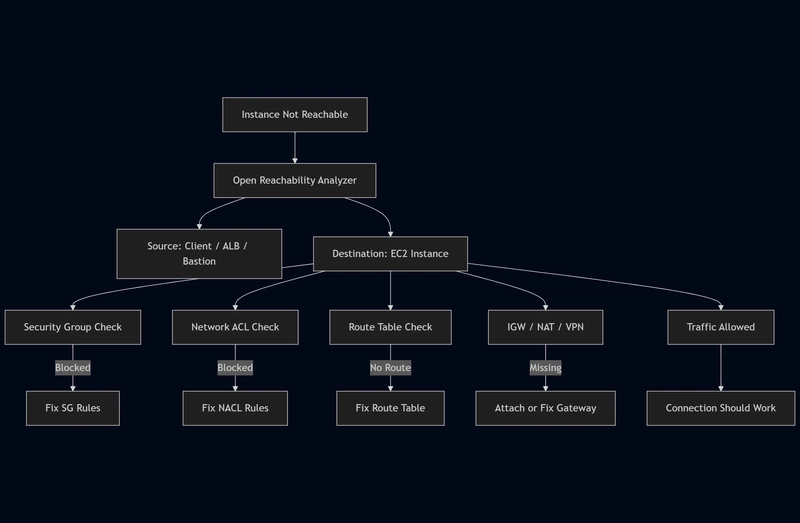
Instead of guessing, Reachability Analyzer visually shows exactly where the network path is blocked.
Instance Events: Checking AWS-Initiated Actions
The Instance Events tab tells me if AWS has scheduled or performed any actions on the instance.
This includes:
- Scheduled maintenance
- Host retirement
- Instance reboot notifications
If an issue aligns with one of these events, the root cause becomes immediately clear.
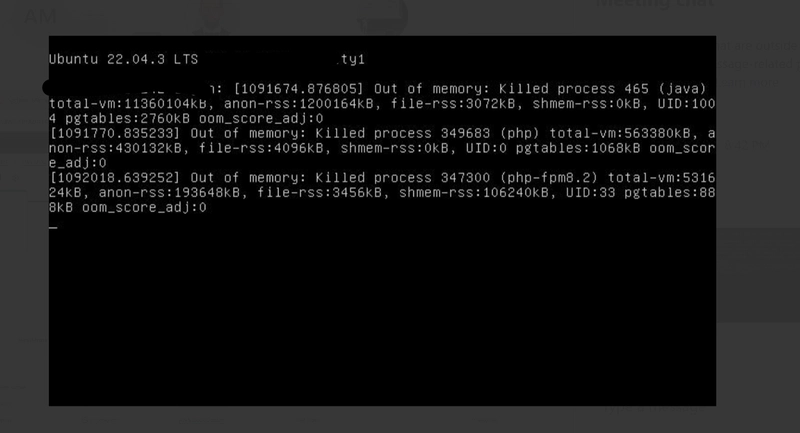
Instance Screenshot: When the OS Is Stuck
If I cannot connect to the instance at all, I check the Instance Screenshot.
This is especially helpful for:
- Identifying boot failures
- Detecting kernel panic messages
- Seeing whether the OS is stuck during startup
Even a single screenshot can explain hours of troubleshooting.
System Log: Understanding Boot and Kernel Issues
The System Log provides low-level OS and kernel messages.
I rely on it when:
- The instance fails to boot properly
- Services fail during startup
- Kernel or file system errors are suspected
This is one of the best tools for diagnosing OS-level failures without logging in.
[[0;32m  OK  [0m] Reached target [0;1;39mTimer Units[0m.
[[0;32m  OK  [0m] Started [0;1;39mUser Login Management[0m.
[[0;32m  OK  [0m] Started [0;1;39mUnattended Upgrades Shutdown[0m.
[[0;32m  OK  [0m] Started [0;1;39mHostname Service[0m.
         Starting [0;1;39mAuthorization Manager[0m...
[[0;32m  OK  [0m] Started [0;1;39mAuthorization Manager[0m.
[[0;32m  OK  [0m] Started [0;1;39mThe PHP 8.2 FastCGI Process Manager[0m.
[[0;32m  OK  [0m] Finished [0;1;39mEC2 Instance Connect Host Key Harvesting[0m.
         Starting [0;1;39mOpenBSD Secure Shell server[0m...
[[0;32m  OK  [0m] Started [0;1;39mOpenBSD Secure Shell server[0m.
[[0;32m  OK  [0m] Started [0;1;39mDispatcher daemon for systemd-networkd[0m.
[[0;1;31mFAILED[0m] Failed to start [0;1;39mPostfix Ma… Transport Agent (instance -)[0m.
See 'systemctl status postfix@-.service' for details.
[[0;32m  OK  [0m] Started [0;1;39mLSB: AWS CodeDeploy Host Agent[0m.
[[0;32m  OK  [0m] Started [0;1;39mVarnish HTTP accelerator log daemon[0m.
[[0;32m  OK  [0m] Started [0;1;39mSnap Daemon[0m.
         Starting [0;1;39mTime & Date Service[0m...
[   13.865473] cloud-init[1136]: Cloud-init v. 25.1.4-0ubuntu0~22.04.1 running 'modules:config' at Fri, 05 Dec 2025 01:25:29 +0000. Up 13.71 seconds.

Ubuntu 22.04.3 LTS ip-***** ttyS0

ip-****** login: [   15.070290] cloud-init[1152]: Cloud-init v. 25.1.4-0ubuntu0~22.04.1 running 'modules:final' at Fri, 05 Dec 2025 01:25:30 +0000. Up 14.98 seconds.
2025/12/05 01:25:30Z: Amazon SSM Agent v3.3.2299.0 is running
2025/12/05 01:25:30Z: OsProductName: Ubuntu
2025/12/05 01:25:30Z: OsVersion: 22.04
[   15.189197] cloud-init[1152]: Cloud-init v. 25.1.4-0ubuntu0~22.04.1 finished at Fri, 05 Dec 2025 01:25:30 +0000. Datasource DataSourceEc2Local.  Up 15.16 seconds
2025/12/15 21:35:50Z: Amazon SSM Agent v3.3.3050.0 is running
2025/12/15 21:35:50Z: OsProductName: Ubuntu
2025/12/15 21:35:50Z: OsVersion: 22.04
[1091674.876805] Out of memory: Killed process 465 (java) total-vm:11360104kB, anon-rss:1200164kB, file-rss:3072kB, shmem-rss:0kB, UID:1004 pgtables:2760kB oom_score_adj:0
[1091770.835233] Out of memory: Killed process 349683 (php) total-vm:563380kB, anon-rss:430132kB, file-rss:4096kB, shmem-rss:0kB, UID:0 pgtables:1068kB oom_score_adj:0
[1092018.639252] Out of memory: Killed process 347300 (php-fpm8.2) total-vm:531624kB, anon-rss:193648kB, file-rss:3456kB, shmem-rss:106240kB, UID:33 pgtables:888kB oom_score_adj:0
Session Manager: Secure Access Without SSH
If Systems Manager is enabled, I prefer using Session Manager to access the instance.
This allows me to:
- Inspect CPU, memory, and disk usage
- Restart services safely
- Avoid opening SSH ports or managing key pairs
From both a security and operational standpoint, this is my preferred access method.
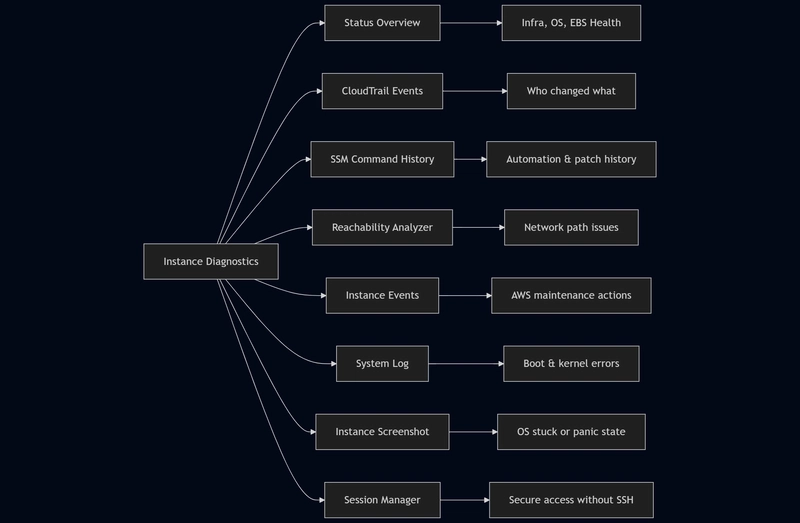
What Experience Has Taught Me
Troubleshooting EC2 instances is not about reacting quickly — it is about observing carefully.
Instance Diagnostics already provides:
- Health signals
- Change history
- Network analysis
- OS-level visibility
When used correctly, these tools eliminate guesswork and reduce downtime.
Final Thoughts
My approach to EC2 troubleshooting is simple:
Start with Instance Diagnostics.
Understand the signals.
Act only after the root cause is clear.
In most cases, the answer is already visible — we just need to slow down and read it.