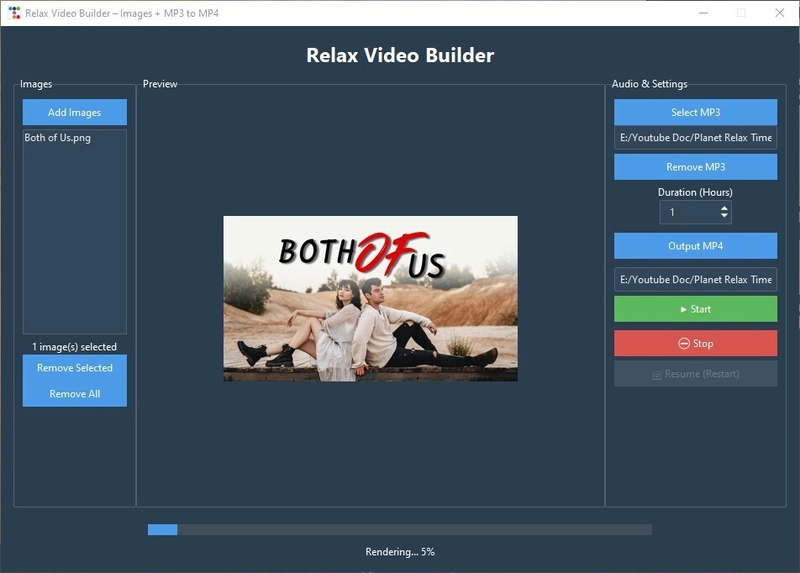
🎬 Build a Relax Video Generator (Images + MP3 MP4) with Python & Tkinter

In this tutorial, we’ll build a desktop GUI app that turns a folder of images and an MP3 file into a long relaxing MP4 video using FFmpeg.
This is perfect for:
Relax / meditation videos
YouTube ambience content
Learning GUI + FFmpeg automation in Python
We’ll go step by step, assuming you’re a beginner.
🧰 What We’ll Use
Python
Tkinter (GUI)
ttkbootstrap (modern UI theme)
Pillow (PIL) for image previews
FFmpeg for video rendering
Threading (so the UI doesn’t freeze)
📦 Step 1: Install Requirements
pip install ttkbootstrap pillow
Make sure FFmpeg is installed and note its path:
C:ffmpegbinffmpeg.exe
🪟 Step 2: Create the Main App Window
We start by importing everything and creating the main window.
import tkinter as tk
from tkinter import filedialog, messagebox
import ttkbootstrap as tb
from PIL import Image, ImageTk
import subprocess
import os
import threading
import time
import re
Now define the app window:
app = tb.Window(
    title="Relax Video Builder – Images + MP3 to MP4",
    themename="superhero",
    size=(950, 650),
    resizable=(False, False)
)
👉 ttkbootstrap gives us modern styling with almost no extra work.
🧠 Step 3: App State Variables
These variables store selected files and app state.
image_files = []
mp3_path = tk.StringVar()
output_path = tk.StringVar()
hours_var = tk.IntVar(value=10)
Rendering state:
process = None
rendering = False
total_seconds = 0
FFmpeg path (⚠️ change this):
FFMPEG_PATH = r"C:ffmpegbinffmpeg.exe"

🖼 Step 4: Selecting and Managing Images
Select images
def select_images():
    files = filedialog.askopenfilenames(
        filetypes=[("Images", "*.jpg *.png")]
    )
    if files:
        image_files.extend(files)
        refresh_images()
Refresh image list
def refresh_images():
    image_listbox.delete(0, tk.END)
    for img in image_files:
        image_listbox.insert(tk.END, os.path.basename(img))
    image_count_label.config(text=f"{len(image_files)} image(s) selected")
Remove images
def remove_selected_images():
    sel = image_listbox.curselection()
    for i in reversed(sel):
        del image_files[i]
    refresh_images()

def remove_all_images():
    image_files.clear()
    refresh_images()
    preview_label.config(image="")
👀 Step 5: Image Preview on Click
When you click an image, we show a preview.
def on_image_select(event):
    sel = image_listbox.curselection()
    if not sel:
        return

    img = Image.open(image_files[sel[0]])
    img.thumbnail((350, 250))
    tk_img = ImageTk.PhotoImage(img)

    preview_label.config(image=tk_img)
    preview_label.image = tk_img
🎵 Step 6: MP3 Selection
def select_mp3():
    mp3 = filedialog.askopenfilename(
        filetypes=[("MP3", "*.mp3")]
    )
    if mp3:
        mp3_path.set(mp3)

def remove_mp3():
    mp3_path.set("")
📁 Step 7: Output File Selection
def select_output():
    out = filedialog.asksaveasfilename(
        defaultextension=".mp4",
        filetypes=[("MP4", "*.mp4")]
    )
    if out:
        output_path.set(out)
▶️ Step 8: Start / Stop Rendering
Start button logic
def build_video():
    if rendering:
        return

    if not image_files or not mp3_path.get() or not output_path.get():
        messagebox.showerror("Error", "Missing images, MP3, or output file.")
        return

    threading.Thread(
        target=run_ffmpeg,
        daemon=True
    ).start()
Stop button
def stop_video():
    global process, rendering
    if process:
        process.terminate()
        process = None
        rendering = False
        status_label.config(text="Rendering stopped.")
        resume_btn.config(state="normal")
🎞 Step 9: FFmpeg Rendering Logic
Calculate duration per image
total_seconds = hours_var.get() * 3600
seconds_per_image = total_seconds / len(image_files)
Create FFmpeg image list
list_file = "images.txt"
with open(list_file, "w", encoding="utf-8") as f:
    for img in image_files:
        f.write(f"file '{img}'n")
        f.write(f"duration {seconds_per_image}n")
    f.write(f"file '{image_files[-1]}'n")
FFmpeg command
cmd = [
    FFMPEG_PATH, "-y",
    "-stream_loop", "-1",
    "-i", mp3_path.get(),
    "-f", "concat", "-safe", "0",
    "-i", list_file,
    "-t", str(total_seconds),
    "-vf", "scale=1920:1080",
    "-c:v", "libx264",
    "-pix_fmt", "yuv420p",
    "-preset", "slow",
    "-crf", "18",
    "-c:a", "aac",
    "-b:a", "192k",
    output_path.get()
]
📊 Step 10: Progress Bar Tracking
We parse FFmpeg’s output to calculate progress.
time_pattern = re.compile(r"time=(d+):(d+):(d+)")

for line in process.stderr:
    match = time_pattern.search(line)
    if match:
        h, m, s = map(int, match.groups())
        current = h * 3600 + m * 60 + s
        percent = (current / total_seconds) * 100

        progress_bar['value'] = percent
        status_label.config(
            text=f"Rendering... {int(percent)}%"
        )
🧱 Step 11: Build the UI Layout
Main container
main = tb.Frame(app, padding=15)
main.pack(fill="both", expand=True)

Left panel (images)
left = tb.Labelframe(main, text="Images", padding=10)
left.pack(side="left", fill="y")

Center preview
center = tb.Labelframe(main, text="Preview", padding=10)
center.pack(side="left", fill="both", expand=True)

Right settings panel
right = tb.Labelframe(main, text="Audio & Settings", padding=10)
right.pack(side="right", fill="y")
🚀 Step 12: Run the App
app.mainloop()
✅ Final Result
You now have a fully working desktop app that:
Combines images + MP3
Builds long relaxing videos
Shows progress in real time
Uses a modern UI
Can be stopped and restarted safely
💡 Ideas to Extend This
Add fade-in/out transitions
Randomize image order
Add text overlays
Remember last-used folders
Export presets for YouTube