
📅 Day 12 | AWS IAM — The Backbone of AWS Security 🔐☁️

📅 Day 12 | AWS IAM — The Backbone of AWS Security 🔐☁️
AWS IAM (Identity and Access Management) helps us securely control access to AWS services.
It is one of the FIRST things every DevOps engineer must master because almost all AWS services depend on IAM Users, Roles, Groups, and Policies.
IAM plays a crucial role in:
- Secure access management
- CI/CD automation
- Service-to-service communication
- DevOps workflows
- Cloud security best practices
Mastering IAM means mastering security + automation + access control, which is the foundation of working in AWS and DevOps.
🔐 What is IAM?
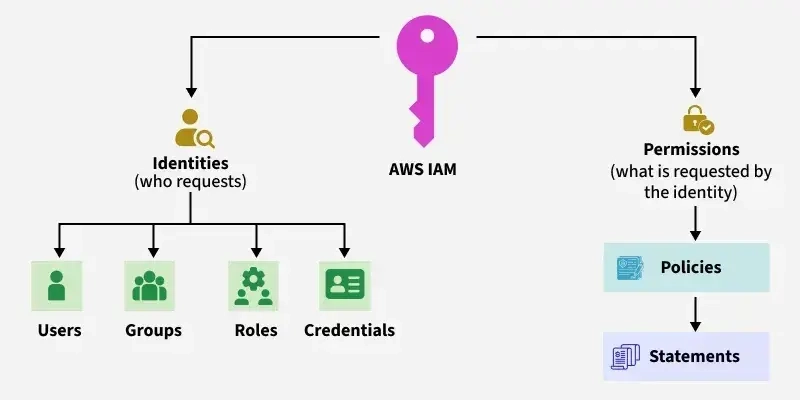
IAM (Identity and Access Management) is the security system of AWS.
It decides who can access what in your AWS account.
Think of IAM like a security guard:
- Users = People who need access
- Roles = Permissions for AWS services (EC2, Lambda, GitHub Actions, Terraform)
- Policies = Rules that say what actions are allowed
- Groups = Team permissions
🧑💻 How to Use IAM (Step-by-Step Guide)
✅ 1. Create IAM Users (for people)
Use users for human access, not automation.
Steps:
- Go to AWS Console → IAM → Users
- Click Create user
- Give name (e.g.,
devops-user) - Attach permissions (Admin or custom)
- Create login credentials
- Enable MFA (very important!)
Purpose: Logging into AWS as a person.
✅ 2. Create Groups (for teams)
Groups help give the same permissions to multiple users.
Examples:
- DevOps-Team
- Developers
- Admin-Team
Steps:
- IAM → User groups
- Create group
- Attach common policies
- Add users to group
✅ 3. Create IAM Roles (for AWS services)
Roles are used by machines, not humans.
Examples:
- EC2 instance role
- Lambda execution role
- GitHub Actions OIDC role
- Jenkins role
- Terraform role
Steps:
- IAM → Roles → Create role
- Choose Service (EC2, Lambda, etc.)
- Attach policies (S3, EC2, CloudWatch)
- Attach role to service
Use Examples:
- EC2 can read S3 objects using a role
- GitHub Actions deploys to AWS using a role (no access keys)
✅ 4. Attach Policies (Permissions)
A policy is a JSON document that defines allowed actions.
Example Policy:
{
  "Version": "2012-10-17",
  "Statement": [
    {
      "Effect": "Allow",
      "Action": "s3:GetObject",
      "Resource": "arn:aws:s3:::mybucket/*"
    }
  ]
}
✅ 4. Attach Policies (Permissions)
Steps:
- IAM → Policies
- Create policy
- Attach to user / group / role
✅ 5. Enable MFA (for security)
MFA adds strong protection during login.
Steps:
- IAM → Users → Your user → Security credentials
- Click Assign MFA device
- Scan QR code using Google Authenticator / Authy
- Done
✅ 6. Use IAM Access Analyzer
IAM Access Analyzer identifies security risks like public S3 buckets or over-permissive policies.
Steps:
- IAM → Access Analyzer
- Enable analyzer
- Check findings
- Fix over-permissive policies
🧰 Where IAM is Used in DevOps?
| Task | IAM Required? | Example |
|---|---|---|
| CI/CD (GitHub Actions) | Yes | Role with OIDC |
| Terraform | Yes | IAM Role with policies |
| EC2 Logging | Yes | CloudWatch role |
| S3 Artifacts | Yes | S3 access policy |
| EKS | Yes | IAM roles for Kubernetes |
| Jenkins Deployment | Yes | IAM user / role |
| Monitoring | Yes | CloudWatch permissions |
Thank You
🔗 Connect With Me
| 🌐 Platform | 🔗 Link |
|---|---|
| 🐙 GitHub | https://lnkd.in/d2F3JPa3 |
| ✍️ Dev.to Blog | https://lnkd.in/dNtgqAME |
| https://lnkd.in/d3NctxFT | |
| 📄 Resume (Google Drive) | https://lnkd.in/dHDNsd_D |
🔖 Hashtags
AWS #DevOps #CloudComputing #AWSLearning #EBS #VolumeMounting #DataPersistence #LearningJourney #CareerGrowth #DevOpsEngineer #AWSCommunity